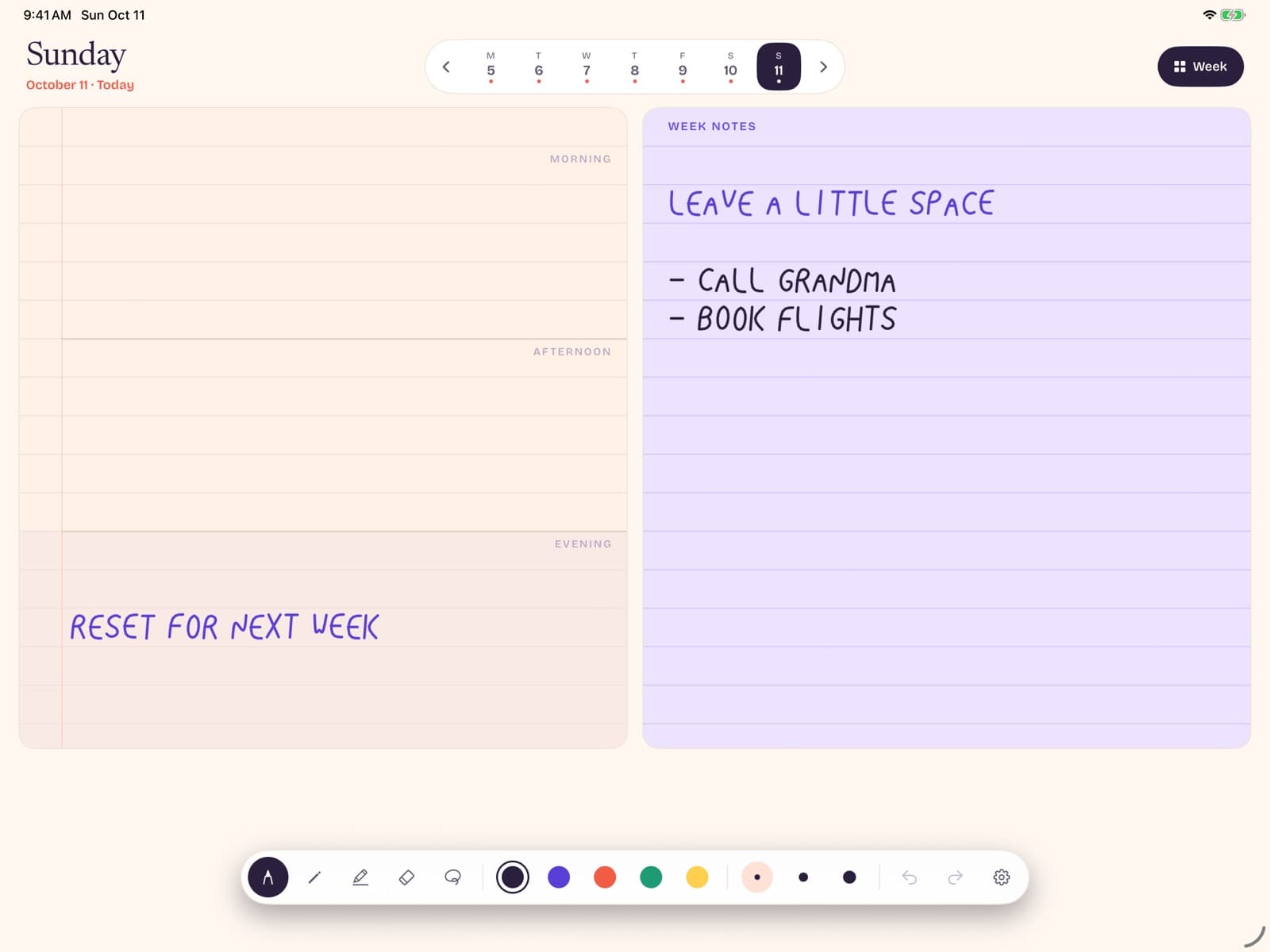
A digital planner for iPad should feel closer to a notebook than a project-management dashboard. The best ones let you write with Apple Pencil, see a week at a glance, and stay usable offline — without forcing sticker packs, AI summaries, or another subscription.
Key takeaways
- Ubersuggest shows about 2,400 U.S. monthly searches for "digital planner for iPad" and roughly 2,900for "digital planner iPad" (July 2026 data) — strong commercial demand.
- Most ranking products are PDF templates inside note apps. A purpose-built weekly canvas is often simpler if your goal is planning, not scrapbooking.
- Prioritize handwriting latency, undated weeks, offline use, and clear pricing over feature checklists.
- Start with one weekly spread for 14 days before buying more templates or upgrades.
What a digital planner for iPad really is
Search results mix three different products under one label. First: interactive PDF planners you open in GoodNotes, Notability, or similar. Second: calendar apps with pretty themes and widgets. Third: handwriting-first notebooks that happen to use a weekly layout. Only the third group consistently behaves like paper when you put Pencil to glass.
That distinction matters because "digital planner for iPad" buyers often arrive after paper planners failed them — weight, wasted dated pages, or the friction of carrying a second book. They are not always asking for more software. They are asking for the paper ritual on a device they already own.
A useful definition: a digital planner for iPad is a system where the primary input is handwriting (or stylus ink), the primary view is a planning unit (day, week, or month), and the primary outcome is a visible plan you can revise. If the app pushes you to type events into a cloud calendar first, it is a calendar with a pencil accessory — not a planner in the notebook sense.
Related searches such as "best digital planner for iPad" (~720 U.S. monthly searches) and "undated weekly planner" (~1,600) show two buyer moods. One wants a ranked list of products. The other wants a format that does not punish skipped weeks. Good digital planners can satisfy both when the layout stays undated and the ink stays fast.
Who should use one (and who should not)
An iPad digital planner is a strong fit if you already carry an iPad for reading or meetings, prefer sketching priorities by hand, and want one week visible without opening five nested notebooks. Students, freelancers, and managers who think in tasks-plus-notes — not only timed events — usually land here.
It is a weaker fit if your work lives entirely in shared calendars with teammates who need real-time invites. In that case, keep Google Calendar or Apple Calendar as the system of record and use a handwriting planner as a thinking layer beside it. Trying to replace team scheduling with a private notebook creates duplicate work.
It is also a weak fit if you hate writing. Some people plan faster by typing. Honor that. Digital paper is not morally superior; it is simply better for certain brains. If you bounce between formats every month, pick one weekly canvas and commit for two weeks before switching again.
Finally, skip hyper-decorated planners if decoration becomes the hobby. Stickers and washi can be joyful — and they can also consume the planning hour. If your goal is finishing the week sanely, choose bare layouts first. You can always add flourish later.
Four types of digital planners
Knowing the category saves money. Most App Store screenshots look similar until you use them for a real Monday.
1. PDF template planners
These are designed pages sold as files. You import them into a note app and tap hyperlinks between covers, months, and trackers. Strength: endless aesthetics. Weakness: setup time, file management, and dependency on another app's subscription roadmap.
2. All-in-one productivity suites
Apps that mix tasks, databases, calendars, and notes. Strength: powerful when configured. Weakness: configuration is the product. Many people abandon the suite after a weekend of building dashboards.
3. Calendar skins
Pretty calendars with Pencil support layered on timed events. Strength: sync and reminders. Weakness: poor freeform thinking space. They excel at "when," not "what matters."
4. Handwriting-first weekly canvases
Purpose-built undated weeks for Apple Pencil, with minimal chrome. Strength: speed and calm. Weakness: fewer novelty features. Bareweek sits in this category: undated weekly spreads for Apple Pencil — write this week, swipe for next.
| Type | Best for | Watch out for |
|---|---|---|
| PDF templates | Custom aesthetics | Setup + app lock-in |
| Productivity suites | Complex systems | Build time and churn |
| Calendar skins | Timed schedules | Weak freeform notes |
| Weekly canvases | Handwritten weeks | Fewer decorative extras |
Features that matter for Apple Pencil
Marketing pages list dozens of features. For planning quality, only a handful change outcomes.
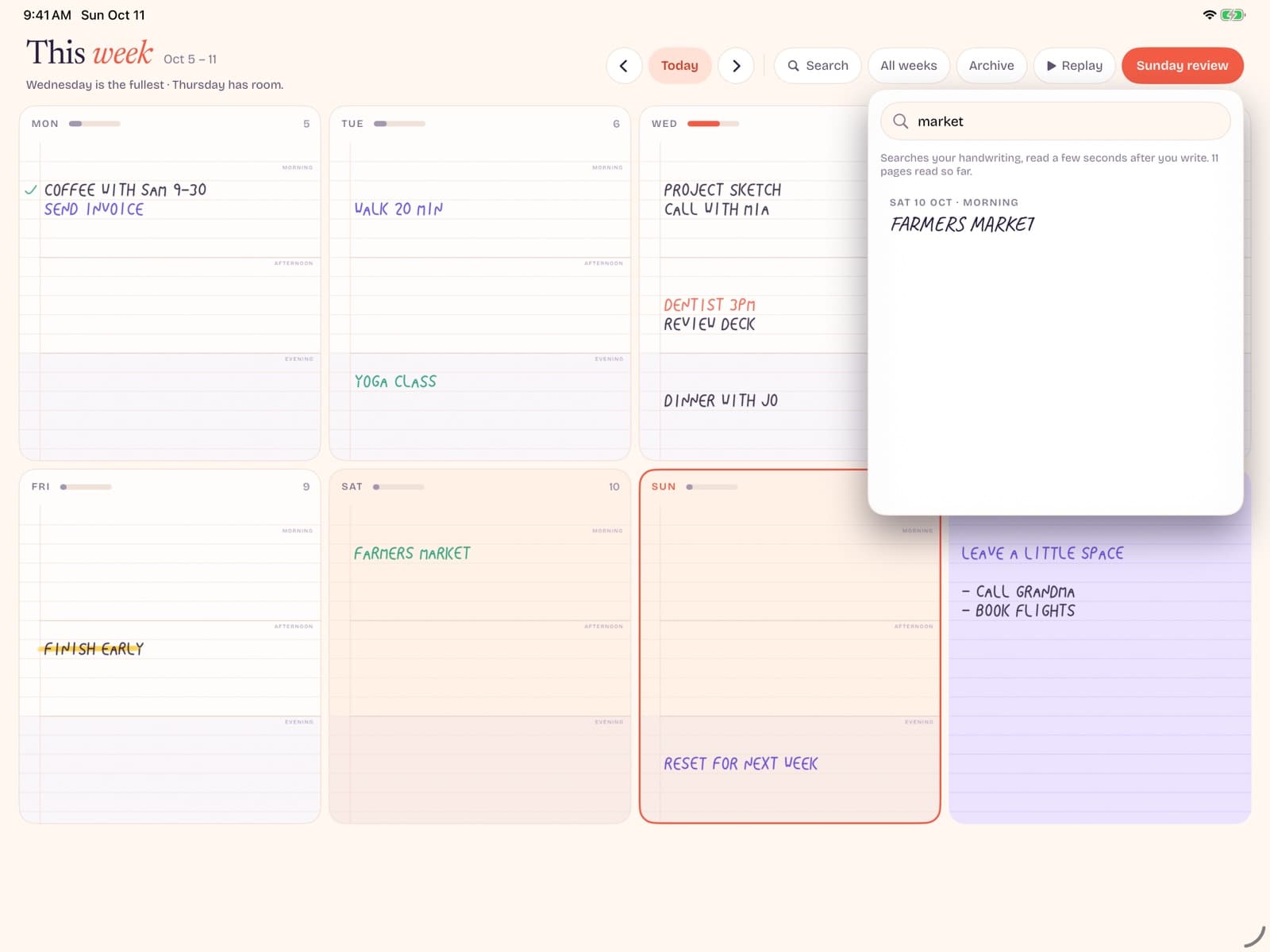
Ink latency and palm rejection. If strokes lag or your palm leaves marks, you will stop writing. Prefer native PencilKit experiences documented in Apple's PencilKit documentation.
Undated weeks. Dated digital planners recreate the worst part of paper: shame pages. Undated spreads keep momentum after travel or sick weeks. This is why undated formats keep strong search interest even as digital tools grow.
True weekly overview.A planner that forces endless scrolling between days fails the "see the week" test. Seven columns (or a clear week grid) should be visible without a scavenger hunt.
Offline reliability. Airplanes and weak cafes still exist. If planning requires a sync spinner, it is fragile.
Honest pricing. One-time unlocks and clear free tiers beat mystery subscriptions. Bareweek, for example, offers free writing for this week and next (other weeks stay readable), then a $12.99 lifetime Pro unlock — useful as a reference point when comparing template clubs that renew monthly.
Nice-to-haves (stickers, habit rings, AI cleanup) should not outrank the list above. Add them only after the weekly canvas already works.
A calm 20-minute setup
Over-setup is the silent killer of digital planners. Use this sequence once, then stop tinkering for two weeks.
- Install one planner app only. Do not download five "top" options on day one.
- Create a single undated weekly spread for the current week. Write the dates by hand if you want them.
- Block three must-do items per weekday maximum. Overflow goes to a notes column, not a second system.
- Park meetings that already live in a calendar. Draw a small box or time mark; do not retype every invite.
- At week's end, swipe or open the next undated week. Migrate only unfinished items that still matter.
This mirrors paper discipline on purpose. The iPad advantage is undo, search (when available), and not carrying a second object — not infinite customization.
Coming soon
Start with a bare weekly canvas.
Bareweek is a digital planner for iPad built for Apple Pencil handwriting — undated weeks, offline use, no AI layer.
Common mistakes to avoid
Buying before testing ink. Screenshots cannot show latency. Write a full grocery list and a messy priority sketch before you pay.
Recreating your entire life on day one. Importing every habit tracker, meal plan, and finance log guarantees overwhelm. Add modules only after the weekly spine holds.
Running three planners at once. Paper + PDF + app suites create reconciliation tax. Pick a primary weekly home.
Confusing decoration with planning. If your session ends with a beautiful page and an unclear week, the tool won.
Ignoring export and backup reality. Local-first apps need device backups. Cloud apps need account hygiene. Know which model you chose; Bareweek's privacy policy describes a local-first approach where drawings stay on device.
Pricing models explained
Expect four patterns in the market: free with limited pages, one-time app purchase, recurring subscription, and pay-per-template packs. Subscriptions can be fair when you get continuous cloud sync and active development — but many planner buyers do not need that intensity.
Template packs look cheap until you own twelve of them. One-time unlocks are easier to evaluate against a paper planner's annual cost. A quality paper undated book often lands in a similar ballpark to a careful digital unlock, with different tradeoffs in portability.
When you compare options for "digital planner for iPad," put the price next to the job: handwritten weeks, not feature theater. If two apps both deliver fast Pencil ink and undated weeks, prefer the clearer bill.
Three realistic weekly examples
Abstract advice fails until you see how a digital planner absorbs a messy week. Here are three common shapes.
The meeting-heavy professional
Monday through Thursday already hold invite blocks in Apple Calendar. The planner's job is not to duplicate those hours. Instead, write one outcome under each day: the decision or deliverable that makes the meetings worth attending. Keep a notes gutter for hallway follow-ups. Friday becomes a migration page — only carry forward outcomes still alive. This prevents the planner from becoming a second calendar you resent updating.
The student with irregular energy
Classes create rhythm, but energy does not. An undated weekly spread lets you label days after the fact when a sick day or travel day appears. Use morning columns for deep study blocks you control and afternoon columns for labs you do not. Avoid packing habit trackers into the same PDF until the academic week already feels stable for three consecutive weeks.
The parent-freelancer hybrid
Context switching is the tax. Dedicate the left side of the week to paid work and the right edge notes column to household logistics — pickups, forms, grocery constraints. The goal is not perfect separation; it is preventing school emails from overwriting client priorities on the same scribbled line. Digital undo helps when a day explodes and you need to rewrite without shredding paper.
Across all three, the planner earns trust by staying small. If a page requires a legend to interpret, it is already too clever for a rushed morning.
Which iPad and Pencil setups work best
Any modern iPad with Apple Pencil support can run a digital planner. Larger displays make weekly columns kinder to handwriting. An 11-inch or 13-inch iPad Pro / Air class device gives landscape weeks room to breathe. Smaller iPads still work, especially if you zoom a day column when writing longer notes, then zoom out for overview.
Pencil generation matters less than software latency, but a worn tip or loose pencil charge will sabotage any app. Keep a spare tip and charge before weekly planning sessions. If you use a matte screen protector for paper-like friction, recalibrate expectations: friction helps control, while some protectors slightly mute visual sharpness. Test your preferred protector with your shortlisted apps before buying annual template bundles.
Keyboard cases are optional for planners. If you constantly flip to typing, you may actually want a task app. Handwriting-first planners assume the keyboard stays detached during the planning ritual.
Privacy, backups, and "local-first" tradeoffs
Digital planners store surprisingly intimate material: health appointments, money stress, relationship notes, unfinished ambitions. Read permissions carefully. A planner that wants contacts, tracking, and analytics for a notebook job is asking for more than the workflow needs.
Local-first apps keep drawings on device and rely on iCloud/device backups you already manage. Cloud-first apps sync across devices and need account security discipline. Neither is automatically safer; clarity is safer. Know where the bits live and what happens if you delete the app.
Also decide what should never go in a planner photo-synced to shared albums or family accounts. Treat the weekly page like a physical desk notebook you would not leave open in a café.
Seasonality: when searches spike and why it matters
Ubersuggest monthly series for digital planner terms often rise around late-year and January planning cycles, with another lift near academic back-to-school periods. That seasonality pushes template marketplaces to launch dated products. Dated inventory looks timely — and becomes stale by March.
If you buy during peak season, prefer undated systems so August enthusiasm still works in February. If you buy off-season, you can evaluate apps with less marketing noise and more honest day-to-day use. Either way, trial through a boring week, not only a motivated Sunday night.
Conclusion
A digital planner for iPad earns its place when it preserves the clarity of a notebook: one week, honest handwriting, and no wasted dates. Ignore feature bloat long enough to test ink feel and weekly overview. Then keep only the tool that makes Monday quieter.
If you want that bare path, email us about Bareweek, skim our undated weekly planner guide, or compare planner apps for iPad.