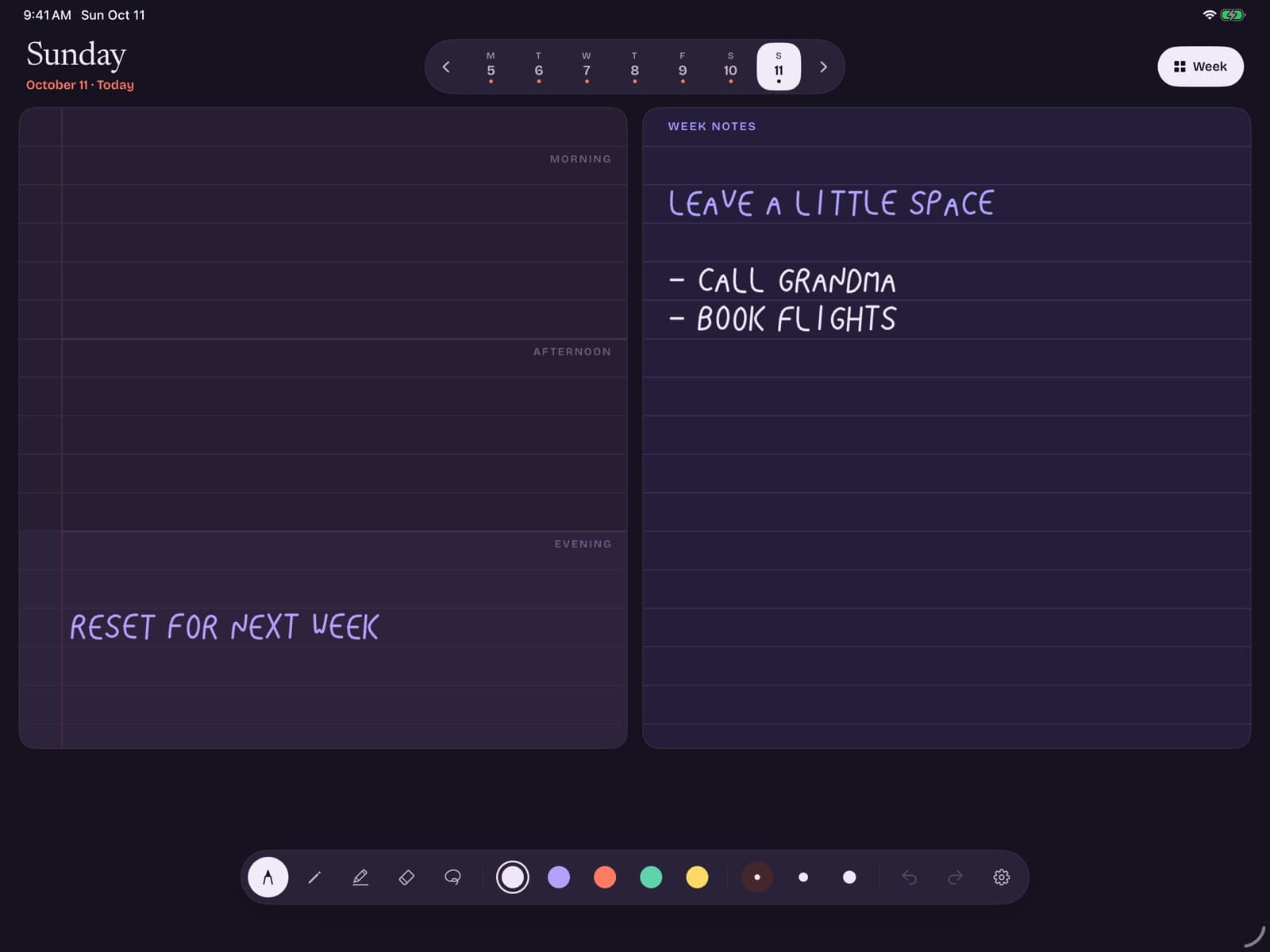
Looking for the best planner app for iPad usually means you want handwriting that feels instant, a week you can see, and pricing that does not quietly renew forever. This guide ranks approaches — not hype screenshots — so you can match the app to the job.
Key takeaways
- "Best planner app for iPad" draws about 1,600 U.S. monthly searches with SEO difficulty around 33 (Ubersuggest, July 2026) — commercial intent with room for practical guides.
- Closely related queries like "best planner app for iPad with pencil" (~170 searches, SD ~21) signal handwriting as the real filter.
- There is no universal winner: PDF ecosystems, calendar apps, and bare weekly canvases optimize different outcomes.
- Score apps on ink feel, undated weeks, overview, offline use, and billing clarity before aesthetics.
How we judge planner apps
App Store charts reward downloads and screenshots. Planning rewards finished weeks. We use five criteria that predict whether you will still open the app on a tired Thursday.
1. Handwriting quality. Apple Pencil should feel like the main input. If typing is easier inside the app than writing, it is probably a task manager wearing planner clothing.
2. Planning unit clarity.Weekly thinkers need a true week. Daily maximalists need day pages. Monthly-only views are calendars. Confusion here causes most "I tried digital and it failed" stories.
3. Undated flexibility. Life skips weeks. Apps that force pre-labeled dates recreate paper guilt digitally.
4. Operational honesty. Offline mode, backup model, and permissions should be understandable in one minute. See also how Bareweek handles local data.
5. Pricing clarity. Free trial boundaries, one-time unlocks, and subscriptions should be obvious before you invest a weekend configuring stickers.
Aesthetic themes matter after these five. A beautiful app you abandon is still a failed planner.
Best planner app by category
Instead of one absolute ranking, choose the category that matches your week.
Best for bare handwritten weeks
Choose a minimal undated weekly canvas if you want Monday–Sunday columns and Pencil ink without template shopping. Bareweek is built for this: free writing for this week and next (other weeks stay readable), Pro at a one-time $12.99 for unlimited weeks. The tradeoff is fewer decorative extras — intentionally.
Best for customizable PDF ecosystems
GoodNotes-class apps win when you love hyperlinked dashboards, stickers, and buying layouts from creators. They are often the default answer floating around "digital planner for iPad" communities. The tradeoff is setup overhead and nested subscriptions (note app + template packs).
Best for timed schedules and shared meetings
Apple Calendar, Fantastical-style apps, or Google Calendar remain better when your week is invite-driven. Use them for "when," and keep a handwriting planner for "what matters." Forcing one tool to do both jobs is a common reason systems collapse.
Best for complex personal operating systems
Notion-like databases and task suites help when you manage multi-step projects with metadata. They are rarely the fastest Apple Pencil experience. If you need databases, keep a separate weekly notebook for thinking so planning does not become schema design.
Side-by-side comparison
| Need | Better category | Why |
|---|---|---|
| Handwritten undated weeks | Weekly canvas (e.g. Bareweek) | Fast ink + no date guilt |
| Decorative templates | PDF + note app | Creator layouts & stickers |
| Team meeting invites | Calendar app | Sync and notifications |
| Project databases | Productivity suite | Structure over freeform |
| Student lecture notes + light planning | Note app with planner PDF | One notebook home |
Notice the pattern: the "best planner app for iPad" is the one whose primary object matches your primary problem. If your problem is messy priorities, a calendar skin will not save you. If your problem is missing standup invites, a blank weekly page will not save you either.
Apple Pencil requirements
Pencil support is not binary. Some apps accept a stylus but optimize for taps and typed text. Others treat stroke pipelines as a core feature. When evaluating the best planner apps for iPad with Pencil, run this ten-minute bench test:
- Write a full paragraph at normal speed.
- Rest your palm while writing near the page edge.
- Scratch out a line and undo twice.
- Switch tools (pen/eraser) without hunting through menus.
- Flip to next week/day and write immediately — no spinner.
If any step feels sticky, you will avoid the app when busy. That is the whole game. Apple's Apple Pencil product guidance emphasizes low-latency writing for a reason: the hardware promise only holds when software keeps up.
Also check orientation. Weekly planners often shine in landscape on larger iPads — Bareweek is landscape-only so each day gets a full page with room for handwriting. For other apps, confirm portrait columns remain readable before you commit.
A weekly workflow that sticks
Apps fail when workflows are vague. Use this lightweight cadence with whichever planner you choose.
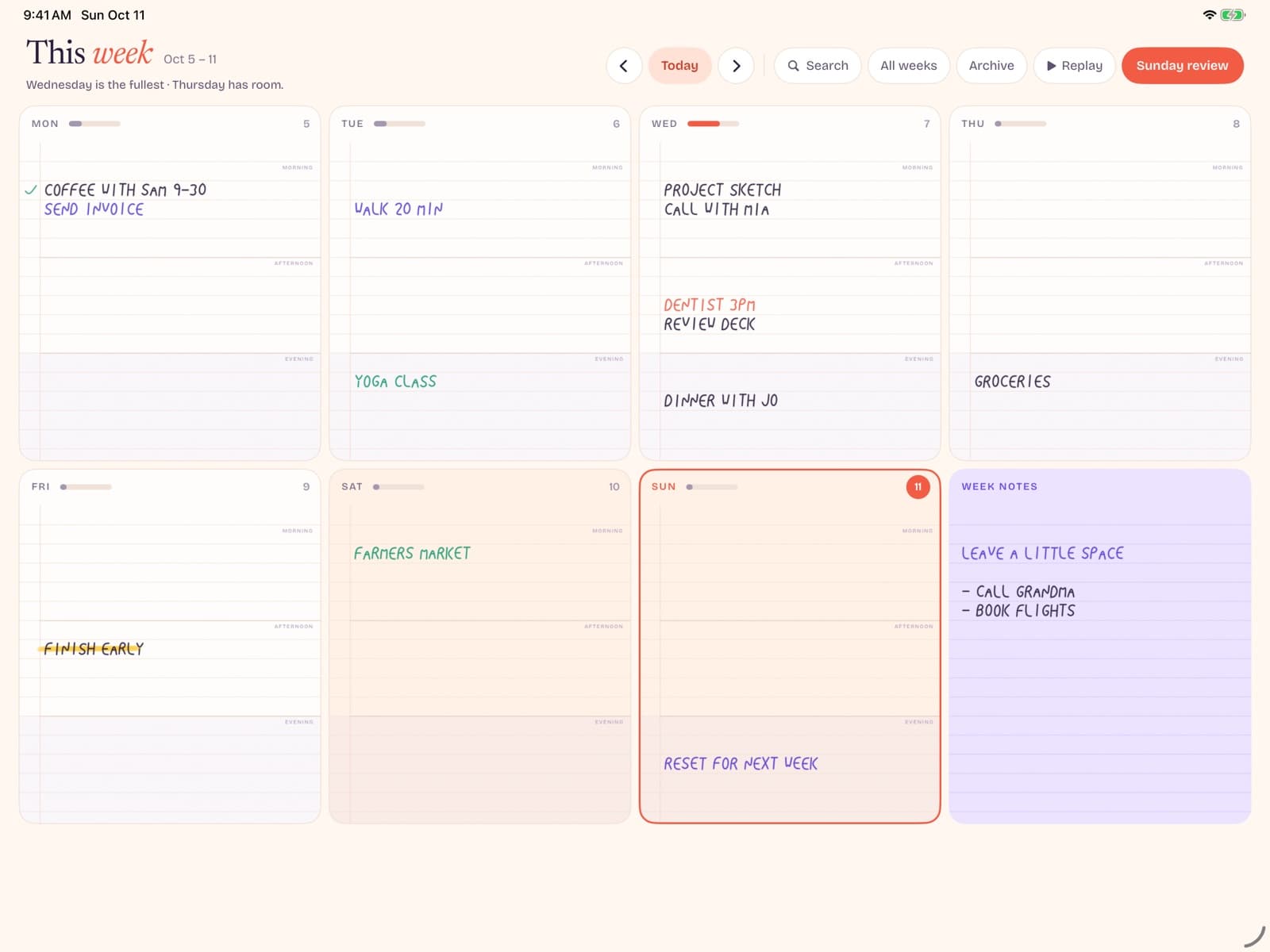
Sunday or Monday open (10 minutes). Title the week. Pull three outcomes that would make the week successful. Place them where you will see them daily.
Daily touch (3–5 minutes). Circle the next action. Cross out the obsolete. Do not rewrite the entire page unless the day truly changed.
Friday capture (5 minutes). List unfinished items. Promote only what still matters to next week. Archive the rest by ignoring it — digital abundance makes hoarding unfinished tasks too easy.
Pair this with one calendar of record for meetings. Your planner remains the thinking surface; your calendar remains the clock. That separation keeps both tools honest.
Coming soon
Want the bare version of this workflow?
Bareweek gives you a page per day and a week view for Apple Pencil — free writing for this week and next (other weeks stay readable), then a one-time Pro unlock.
How to switch without chaos
Switching planner apps mid-year feels expensive emotionally. Reduce the blast radius:
- Finish the current week in the old system. Do not migrate mid-spread unless the app is broken.
- Export or screenshot only active projects. Historical pages rarely need perfect transfer.
- Start the new app with a blank undated week — not a recreation of every tracker you ever used.
- Run a two-week parallel only if necessary; otherwise cold-start and keep the old app read-only.
Also update your definition of success. If you switched because pages looked dull, you may chase aesthetics forever. If you switched because ink lagged or dates shamed you, you are solving the right problem.
For deeper format help, read undated weekly planners on iPad and how to choose a digital planner for iPad.
Printable-style testing scorecard
Use this scorecard while trialing two finalists. Score each item from 1–5. Anything below 3 is a veto if planning is a daily habit.
| Criteria | What a 5 looks like | Your notes |
|---|---|---|
| Ink latency | No visible lag at normal speed | |
| Palm rejection | Wrist rests without marks | |
| Week overview | Seven days readable without hunting | |
| Undated flow | New week in one gesture | |
| Offline | Writes with airplane mode on | |
| Pricing clarity | You can explain the bill in one sentence | |
| Emotional load | You open it without dreading setup |
Add scores. If both apps land within two points, pick the lower-maintenance bill. Feature ties should default to simplicity because complexity compounds every Sunday night.
Recommendations by persona
College or grad student
You likely need lecture notes and a week view. Keep a note app for classes. Use a planner app for deadlines, exams, and work shifts. Do not force one notebook to be syllabus, essay draft, and life admin — retrieval suffers.
Manager or IC with heavy meetings
Calendar remains source of truth for invites. Planner holds decisions, risks, and prep notes. The best planner app for iPad in this persona is whichever lets you scribble during a call without UI chrome eating the page.
Solo operator / freelancer
You need pipeline visibility: pitches, delivery, invoices. A weekly canvas with a notes column beats a kanban you will not update. Review money tasks every Friday so they do not vanish into optimistic Monday handwriting.
Parent coordinating a household
Shared logistics may still need a shared list app. Your personal planner can hold energy boundaries and deep-work hopes the family chat should not host. Digital privacy matters here; assume a tablet can be picked up by curious hands.
Red flags when shopping App Store listings
- Screenshots show ten modules but no clear weekly spread.
- Reviews mention sync loss without a clear backup story.
- Pricing uses "free" while core weeks sit behind an unclear paywall.
- The app requires an account before you can write a single word.
- Marketing leans on AI summaries harder than handwriting quality.
None of these automatically make an app bad. They do mean you should slow down and test with your real Pencil before migrating an entire year.
What the 2026 market is optimizing for
Commercial search volume around best planner apps shows buyers are still deciding between ecosystems. Template creators optimize for novelty drops. Calendar companies optimize for sharing. Note apps optimize for document capture. Few products optimize exclusively for calm weekly handwriting — which is why category confusion persists.
Bareweek's stance is deliberately narrow: undated weeks, Apple Pencil, no subscription treadmill. That narrowness is a poor fit if you want databases. It is a strong fit if your last three systems died from complexity.
A 14-day trial plan (so you actually learn something)
Most people "try" a planner app for one enthusiastic evening. That only tests novelty. Use fourteen days:
- Days 1–2: Install, write garbage strokes, confirm palm rejection, create one undated week.
- Days 3–7: Live inside that week only. No template shopping. No second app in parallel unless calendar invites require it.
- Days 8–10: Intentionally have a messy day. See whether recovery is easy or shameful.
- Days 11–14: Open the next week. Migrate leftovers. Notice whether you dread the tool.
At day 14, answer three questions in writing: Did ink feel invisible? Did I see my week without searching? Would I pay this price again next year? If any answer is no, switch categories — not just skins inside the same category.
This trial structure also prevents a common spending pattern: buying three premium template packs before confirming you even like weekly planning on glass. Pay for confirmed behavior, not imagined identity.
Integrations: when they help and when they harm
Syncing tasks from a manager tool into a planner sounds efficient. In practice, two-way sync can recreate the same clutter you fled. A healthier pattern for many professionals is one-way awareness: calendar for time, planner for judgment, task manager for execution queues.
If an app's best feature is connecting to five other apps, pause. Integration density often signals that the core weekly experience is not strong enough alone. Prefer tools that are complete for a single job, then connect manually where needed — copy a deadline, do not pipe your entire life through Zapier on day one.
Widgets can help as a glance surface, but a widget is not a planner. If you only interact with a widget checklist, you may want a task app, not a weekly notebook.
Accessibility and comfort considerations
Handwriting on glass is not equally comfortable for every body. Tremor, joint pain, or visual strain can make long Pencil sessions harder than typing. If that is you, look for zoomable day columns, strong contrast, and the ability to mix typed labels with handwritten detail. Do not force a romantic paper metaphor past your body's limits.
Reduce glare with appropriate brightness and, if needed, a paper-like protector that lowers slip. Take breaks. A planner that causes pain will not become a habit no matter how elegant the weekly grid looks in marketing screenshots.
Also consider cognitive accessibility: fewer modes, fewer hidden gestures, predictable navigation. The best planner app for iPad for a tired brain is often the one with the least ceremony between "open" and "write."
If you support someone else's planning — a teen, a parent, a teammate — match the tool to their motor and attention profile, not your aesthetic preference. Shared success beats matching cover art.
Conclusion
The best planner app for iPad is the one you still open when energy is low. Rank handwriting, undated flexibility, weekly clarity, offline trust, and pricing before you fall for cover art. Then commit for two weeks — long enough for the novelty to fade and the workflow to show.
If you remember nothing else, remember category fit. A perfect PDF ecosystem will not fix invite-driven chaos, and a perfect calendar will not fix fuzzy priorities. Choose the object that matches the pain, test it with Apple Pencil on a boring week, and ignore the rest of the App Store carnival until that test passes.
Prefer bare weeks? email us about Bareweek or review pricing. Comparing note apps next? Read GoodNotes vs Notability for planning.